Multi-Camera Switching
Multi-camera switching lets you cut between several camera angles, such as a wide shot, a close-up of the roulette wheel and the dealer, while your viewers watch one continuous video. Each angle is a normal nanoStream live stream. You decide which angle is on air, and every connected player follows within a moment.
There's no video mixer or production software involved. Switching is driven by the nanoStream Real-Time API and the hosted Switch Player.
Use cases
- Live casino / iGaming: a table has 3–4 cameras (wide shot, wheel, dealer, table layout), and the game software cuts based on game events.
- Sports: cut between camera positions during a match.
- Live events: switch between stage, audience and backstage cameras.
Open the Stream Switching demo, sign in with your Dashboard account, and set up a group of angles in a few minutes. The demo shows every API call it makes, so you can copy them into your own integration.
You can also set up and switch camera angles in the Builder Hub, under Build › Stream › Set up multi-camera. See Builder Hub: Set up Multi-Camera.
How it works
- Set up a stream group (the API calls it a room). Send the list of camera angles to
POST /rooms/setup. The API checks each stream and returns a ready-to-embed player URL. - Embed the player. Put the player URL in an iframe on your page. Viewers start watching the default angle straight away.
- Switch angles. When you want to cut, your backend calls
PUT /rooms/{roomId}/switchwith the angle to put on air. - Players follow. The API pushes the change to every connected player, and each one switches to the new angle without a gap.
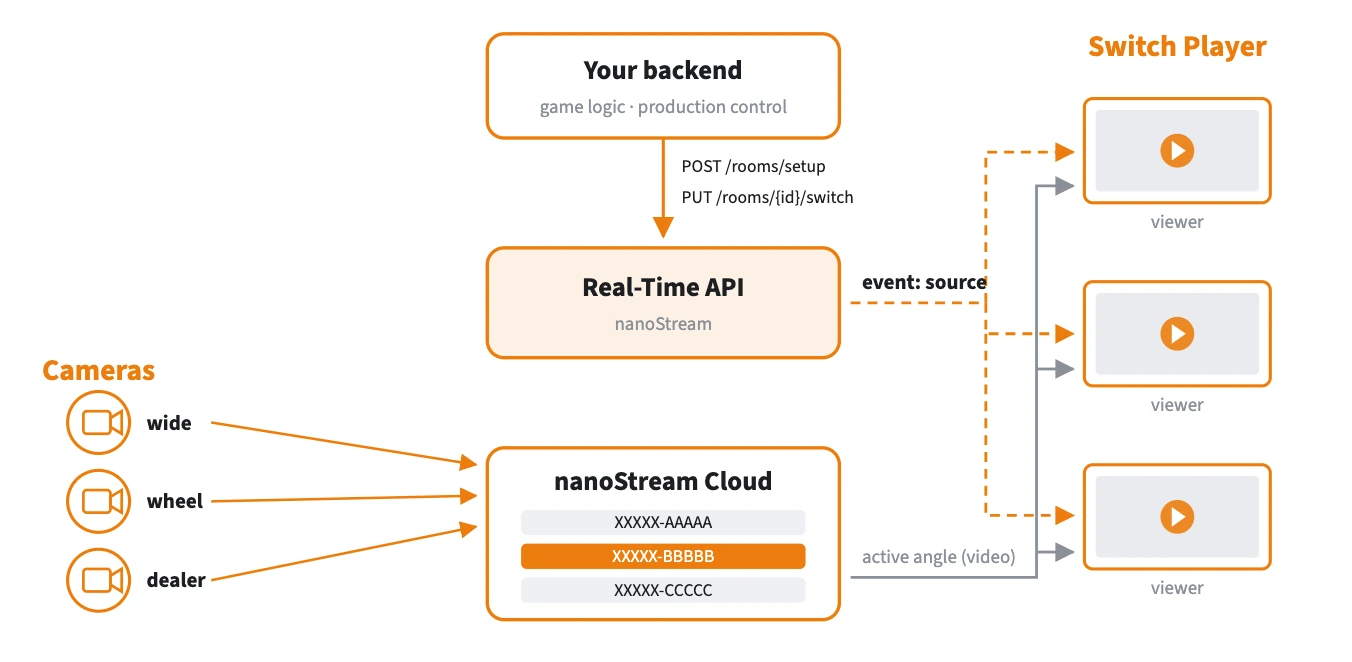
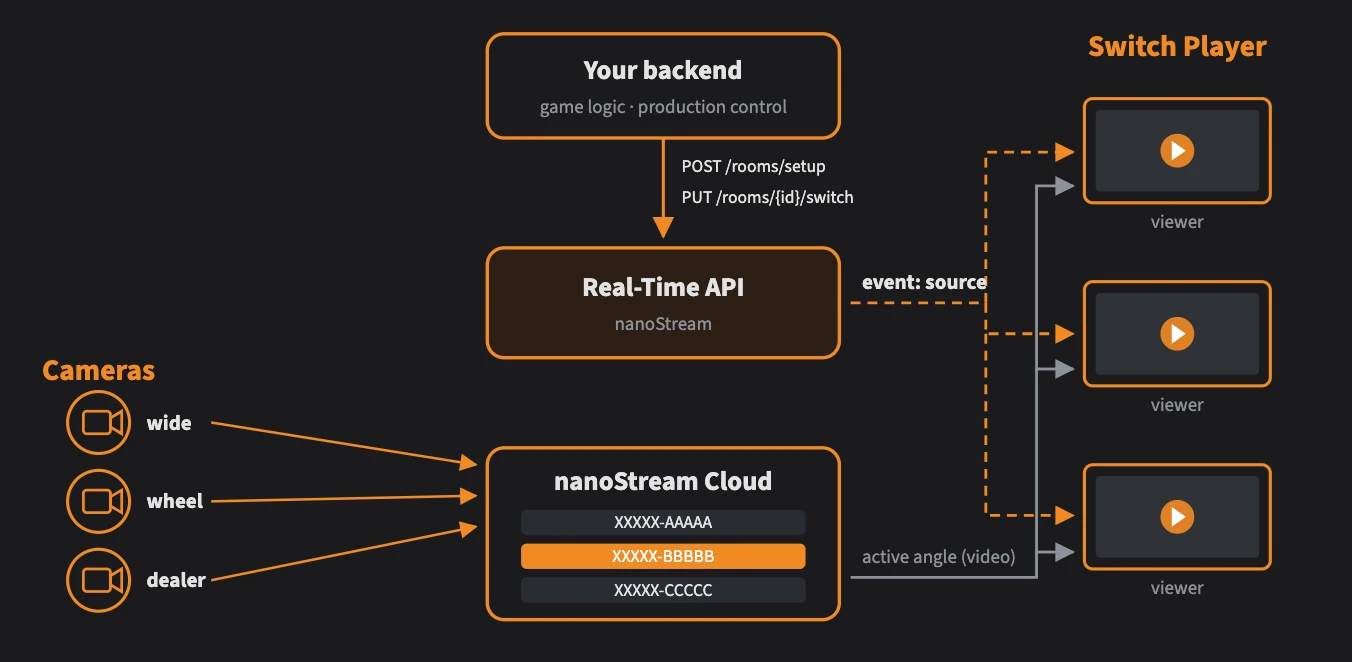
Your backend decides when to cut. The Real-Time API tells every player, and each player switches to the new angle without a gap.
Built-in reliability
- Never a black screen. If a switch fails, the player retries and keeps playing the last good angle.
- Instant start. Viewers see video as soon as the player loads. There's no waiting screen.
- Late joiners are in sync. A viewer who joins or reconnects gets the angle that's on air right now.
- Order is guaranteed. Every switch has a sequence number, so an old event can never overwrite a newer one.
Try it in the demo (no code)
The Stream Switching demo walks through the same steps as the API, in four stations. Use it to try switching before you write any code, or to show it to your team.
1. Connect. Sign in with your Dashboard email and password, or with an API key.

Sign in with the same account you use for the Dashboard.
2. Camera Angles. Choose how many angles you need (2–6). Create new makes a fresh stream for each angle, with optional tags and transcodes. Use existing lets you pick streams your organisation already has. Then click Configure Streams.
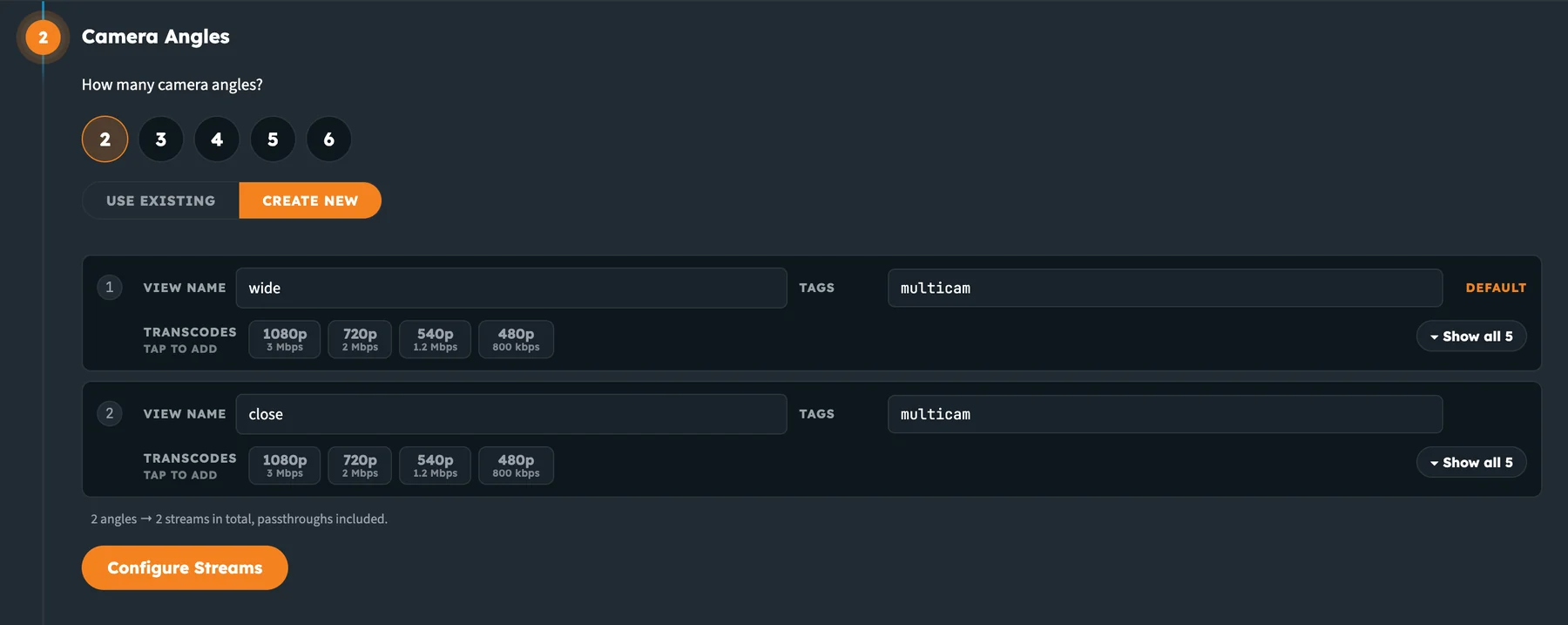
Create new: each angle gets a name, tags and an optional transcoding ladder.
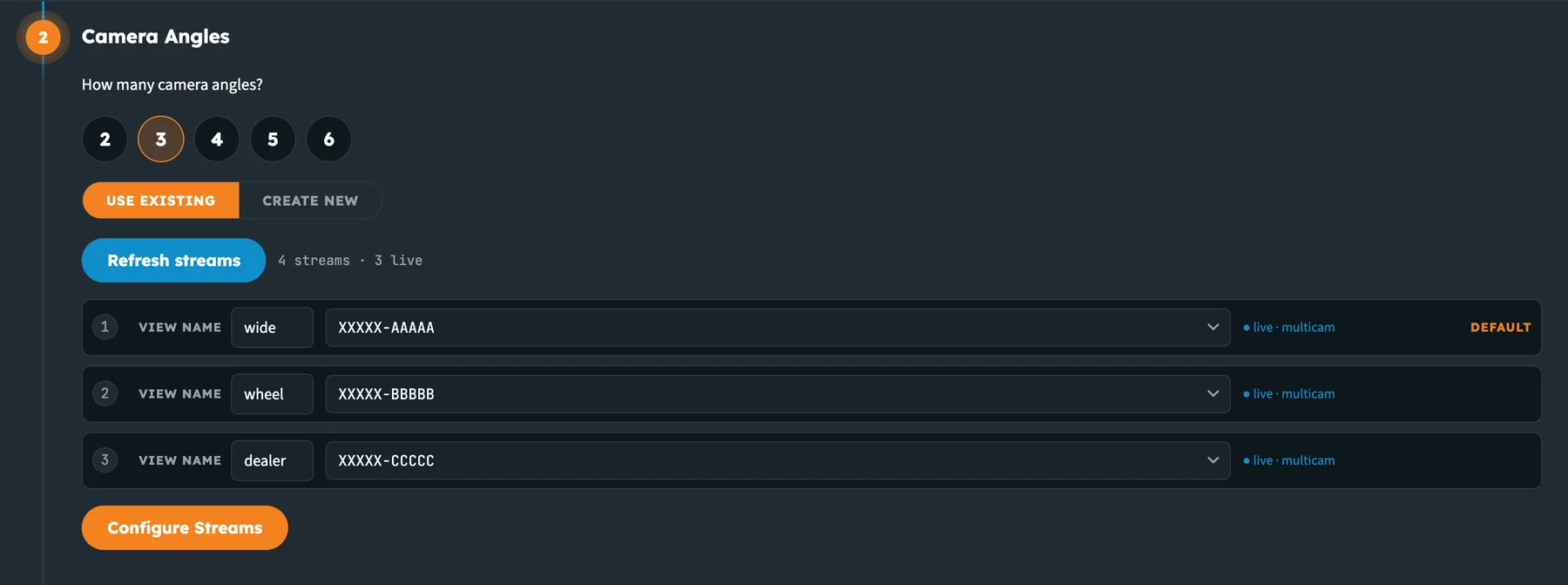
Use existing: match each angle name to one of your streams. Live streams are marked.
3. Stream Group. Give the group a name, or leave it blank to generate one, and click Create Stream Group. This calls POST /rooms/setup.

The stream group is what the API calls a room.
4. Control. The player shows what viewers see. Click a camera (or press 1–6) to cut. The on-air angle is green, and the others are on standby.
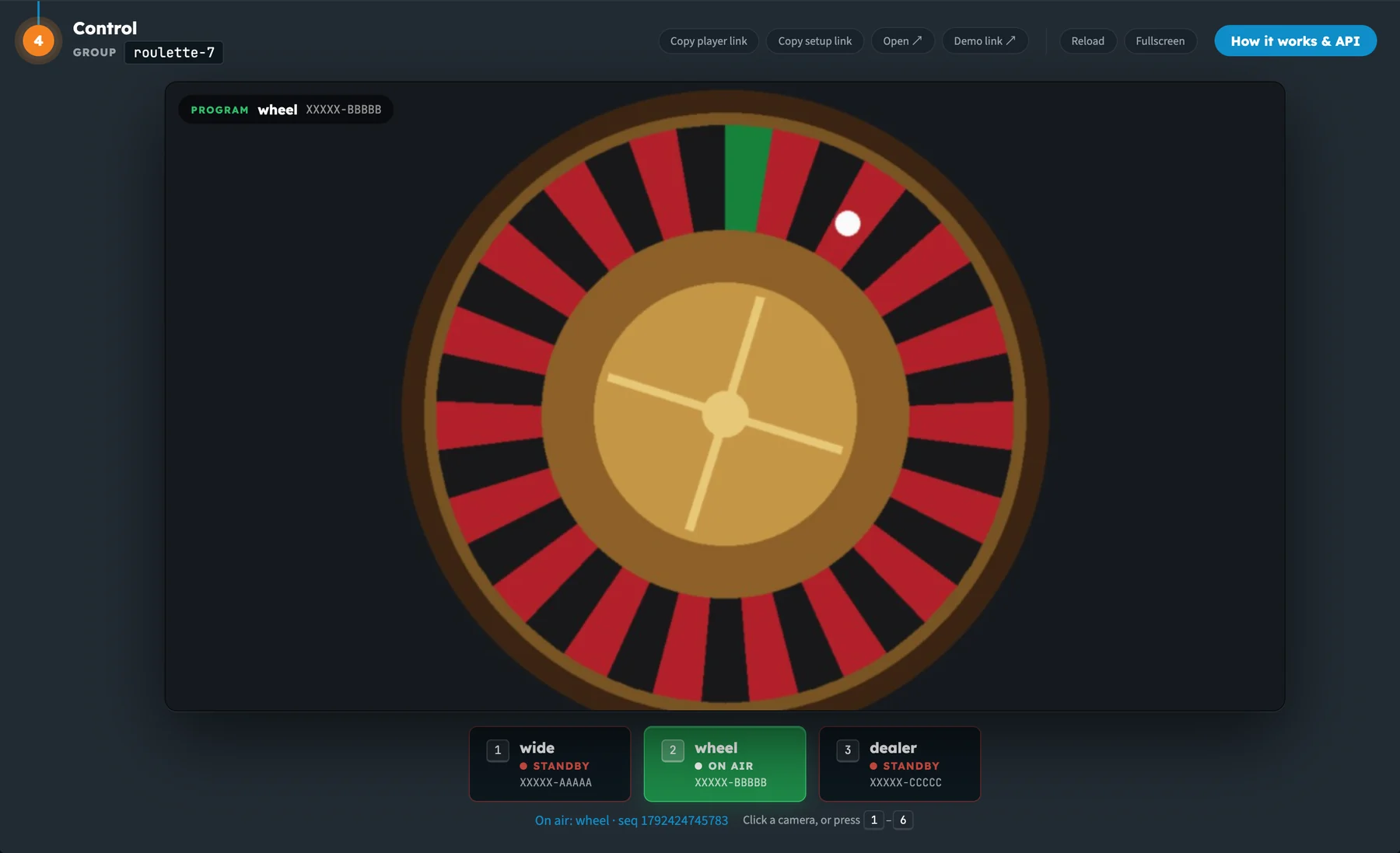
Cut to wheel: the player follows, and the status line shows the sequence number of the switch.
Copy player link gives you the URL to embed, and How it works & API shows the ingest details and the exact API calls for your group.
Before you start
- A nanoStream account with Multi-Camera Switching enabled (see the note below)
- One live stream per camera angle (up to 10), with an encoder sending to each. See Live Encoding.
- A bintu token for API calls (see Authentication)
The examples below call https://real-time-api.nanostream.cloud.
Multi-Camera Switching requires a business upgrade. Contact our sales team through the contact form or by email to sales(at)nanocosmos.de.
Step 1: Set up a stream group
Call POST /rooms/setup once per group, for example once per table or show. Give each angle a label of your choice and mark exactly one as active. That angle is what viewers see first.
- curl
- JavaScript (Node.js)
curl -X POST https://real-time-api.nanostream.cloud/rooms/setup \
  -H "Authorization: Bearer $BINTU_TOKEN" \
  -H "Content-Type: application/json" \
  -d '{
    "roomId": "roulette-7",
    "streams": [
      { "label": "wide",   "stream": "XXXXX-AAAAA", "active": true },
      { "label": "wheel",  "stream": "XXXXX-BBBBB" },
      { "label": "dealer", "stream": "XXXXX-CCCCC" }
    ]
  }'
const res = await fetch('https://real-time-api.nanostream.cloud/rooms/setup', {
  method: 'POST',
  headers: {
    'Authorization': `Bearer ${process.env.BINTU_TOKEN}`,
    'Content-Type': 'application/json',
  },
  body: JSON.stringify({
    roomId: 'roulette-7',
    streams: [
      { label: 'wide',   stream: 'XXXXX-AAAAA', active: true },
      { label: 'wheel',  stream: 'XXXXX-BBBBB' },
      { label: 'dealer', stream: 'XXXXX-CCCCC' },
    ],
  }),
});
const { roomId, playerUrl } = await res.json();
The response contains the playerUrl you embed in Step 2:
{
  "roomId": "roulette-7",
  "playerUrl": "https://…/player.html?roomId=roulette-7&token=…",
  "streams": [
    { "label": "wide",   "streamId": "951dfcca-…", "streamName": "XXXXX-AAAAA", "active": true },
    { "label": "wheel",  "streamId": "a1b2c3d4-…", "streamName": "XXXXX-BBBBB", "active": false },
    { "label": "dealer", "streamId": "f0e1d2c3-…", "streamName": "XXXXX-CCCCC", "active": false }
  ]
}
streamaccepts a stream name (XXXXX-AAAAA) or a stream ID (UUID).roomIdis optional. If you leave it out, one is generated from your organisation and the default angle's label, so set your ownroomIdwhen you run more than one group.- Labels must be unique within a group. Labels are compared case-insensitively. You use them in every switch call.
If your organisation uses secure playback tokens, add "security": { "jwtoken": "<playback token>" } to the setup request. The token is built into the player URL so the player can authenticate.
Step 2: Embed the player
Put the playerUrl in an iframe. Don't build the URL yourself: it contains a signed token that lets the player receive switch events for this group.
<iframe
  src="PLAYER_URL_FROM_SETUP"
  width="1280"
  height="720"
  frameborder="0"
  allow="autoplay; fullscreen"
  allowfullscreen>
</iframe>
The player starts muted with autoplay, and uses the balancedadaptive latency mode.
Step 3: Switch angles
Call PUT /rooms/{roomId}/switch whenever you want to cut. Send the label to put on air in active, and the full set of angles (label → stream name) in angles, every time.
- curl
- JavaScript (Node.js)
curl -X PUT https://real-time-api.nanostream.cloud/rooms/roulette-7/switch \
  -H "Authorization: Bearer $BINTU_TOKEN" \
  -H "Content-Type: application/json" \
  -d '{
    "active": "wheel",
    "angles": {
      "wide":   "XXXXX-AAAAA",
      "wheel":  "XXXXX-BBBBB",
      "dealer": "XXXXX-CCCCC"
    }
  }'
await fetch('https://real-time-api.nanostream.cloud/rooms/roulette-7/switch', {
  method: 'PUT',
  headers: {
    'Authorization': `Bearer ${process.env.BINTU_TOKEN}`,
    'Content-Type': 'application/json',
  },
  body: JSON.stringify({
    active: 'wheel',
    angles: { wide: 'XXXXX-AAAAA', wheel: 'XXXXX-BBBBB', dealer: 'XXXXX-CCCCC' },
  }),
});
{ "ok": true, "roomId": "roulette-7", "active": "wheel", "seq": 1726900749616 }
Every player in the group switches to the wheel angle.
Next steps
- Multi-Camera Switching: API Reference: every endpoint, field, event and error
- Stream Switching demo: try it in your browser
- Builder Hub: Set up Multi-Camera: the same flow in the Builder Hub
- Secure Playback: protect your streams with tokens