Builder Hub: Manage Tokens
Manage tokens lets you create a playback token and revoke it instantly if a stream turns up somewhere it shouldn't.
A playback token is a signed key (a JWT) that lets a player watch one stream group for a limited time. With secure playback on, a player without a valid token can't play the stream. Manage tokens adds the other half: you can revoke a token at any time, and every player using it disconnects.
You find it in the sidebar under Build › Security › Manage tokens.
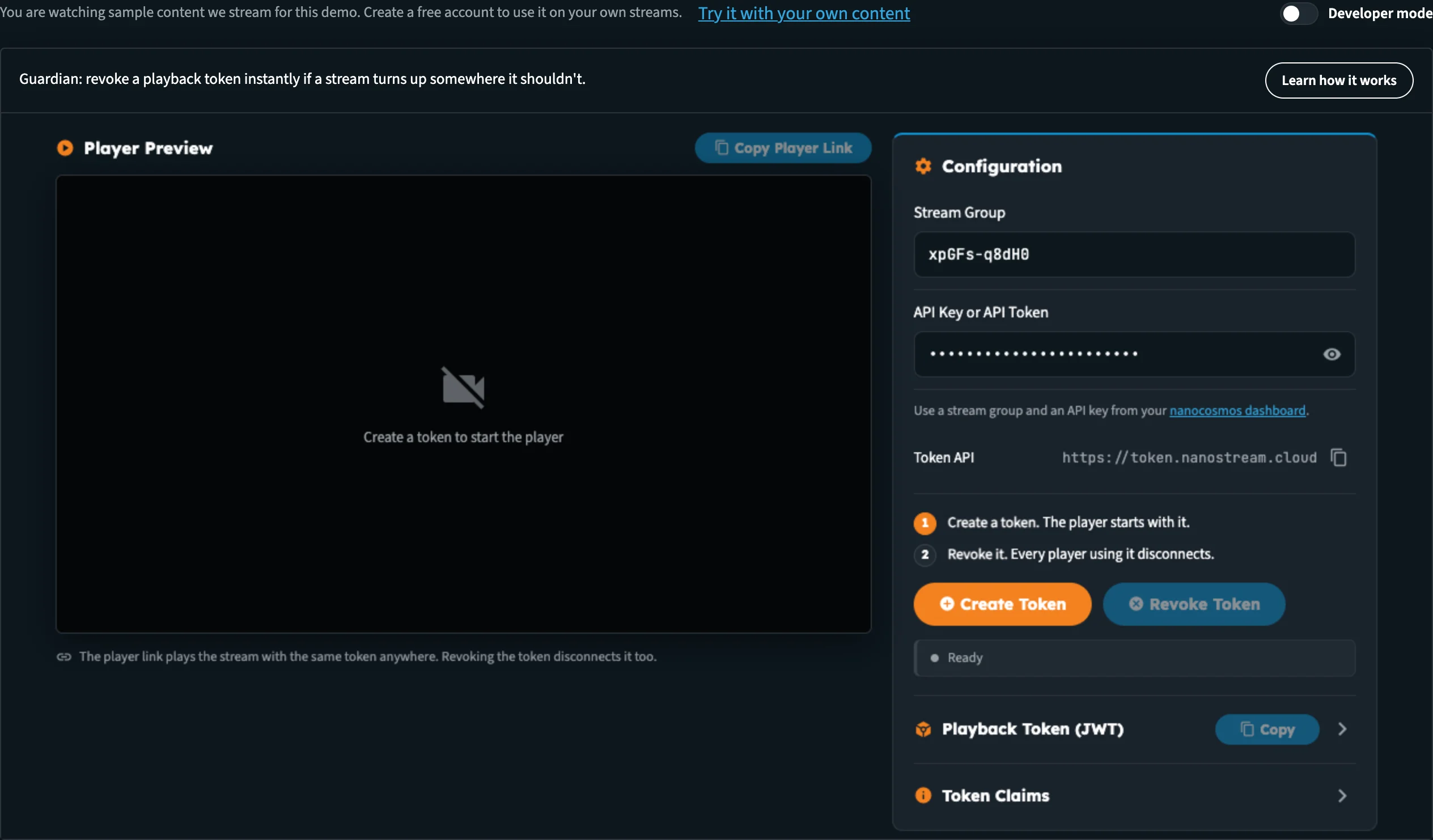
Manage tokens before a token exists. The player waits for one.
Who can use it
| You are | What you get |
|---|---|
| Guest | The full flow on a sample stream of ours, with a demo key filled in. Nothing touches any account. The bar above the page offers Try it with your own content, which opens the free sign-up. |
| Free account | The same flow on the sample stream, or on your own stream group with your own API key |
| Production account | The same. If secure playback isn't on your account yet, the bar above the page says Secure playback is not on your account yet. with an Upgrade button that emails our sales team for an offer, with the feature and your organisation filled in. |
Click Learn how it works in the toolbar above the tool for a short summary of the page.
Create and revoke a token
The page opens with a sample Stream Group and a demo API Key or API Token already filled in, so you can start straight away.
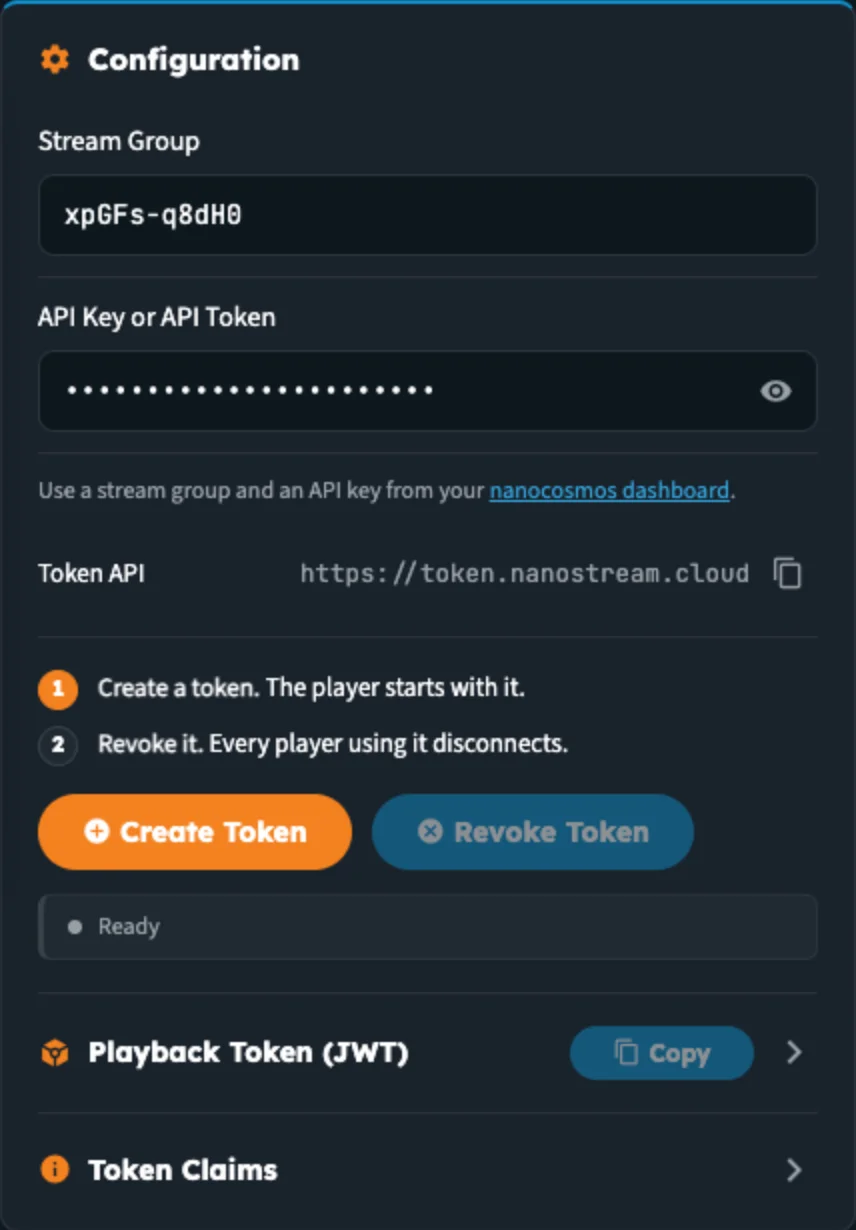
The Configuration section and the two steps: create a token, then revoke it.
Step 1: Create a token
- Click Create Token. The status reads Creating token....
- When it reads Token created. The player starts with it., the Player Preview starts playing the stream with the new token.
- Open Playback Token (JWT) to see the token itself, and click Copy to copy it.
- Open Token Claims to inspect what's inside it: the stream group it's for, when it expires, and whether it can be revoked.
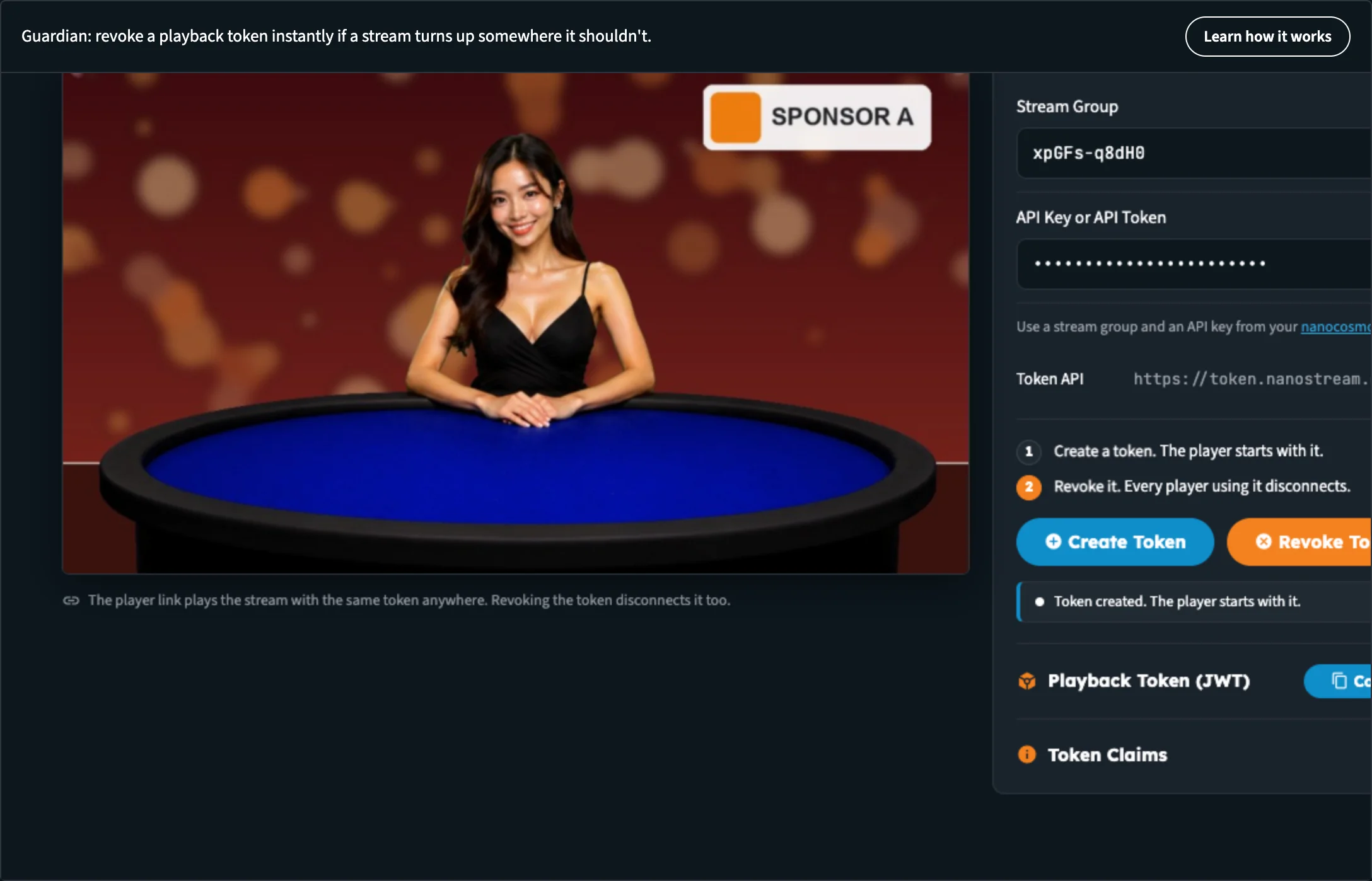
A token was created and the player started with it. The token and its claims are ready to inspect.
To watch the stream with the same token somewhere else, click Copy Player Link. The player link plays the stream with the same token anywhere. Revoking the token disconnects it too.
Open the copied player link in another browser or on your phone before you revoke. When you revoke the token in the next step, that player loses the stream as well.
Step 2: Revoke it
- Click Revoke Token. The status reads Revoking token....
- Every player using the token disconnects. In place of the player you see Token revoked. The player was disconnected. and Create a new token to watch again.
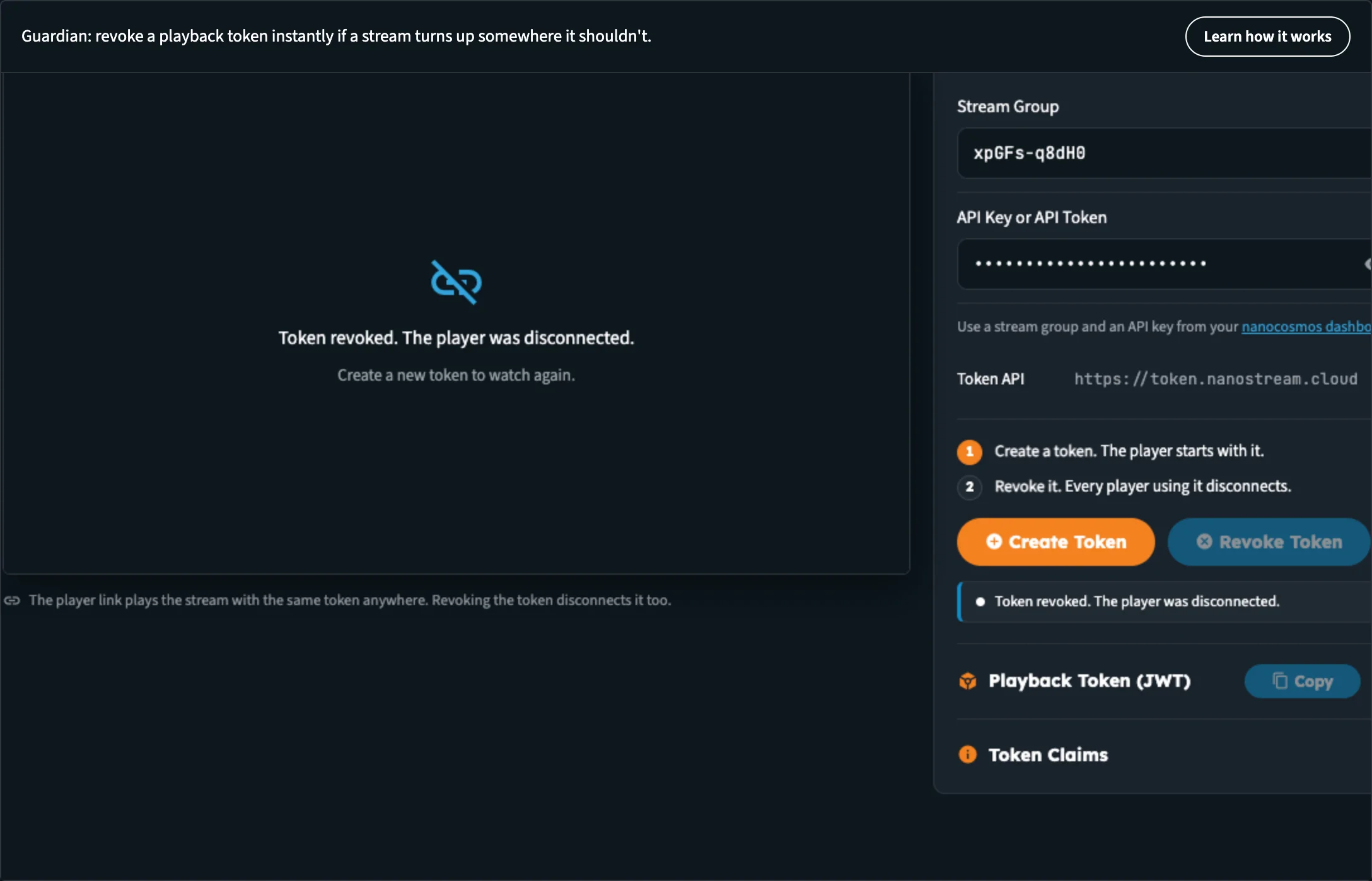
After Revoke Token, the player loses access right away.
Click Create Token again to issue a fresh token and watch again. The tokens the hub creates here are short-lived (a few minutes) and can be revoked.
Use your own stream
- Under Configuration, replace Stream Group with the ID of one of your own stream groups.
- Paste an API key or API token from your account into API Key or API Token. Use the eye button to show or hide it.
- Click Create Token, then Revoke Token, as above.
Your stream must be live for the player to show a picture. You'll find your stream groups and your API key in the nanoStream Dashboard.
Token API shows the address of the token service the page calls, with a button to copy it.
When something goes wrong
| Status | What to do |
|---|---|
| Enter a stream group | Fill in Stream Group |
| Enter an API key or token | Fill in API Key or API Token |
| Token API error … | The token service refused the request. Check that the API key belongs to the organisation that owns the stream group. |
| Player Error with a Message and Code | The player couldn't play. Check that the stream is live, and that the token is still valid. |
Secure playback across the hub
Signed in with a production account, the account menu lists your account's features, including Secure playback as On or Off.
When secure playback is on for your organisation, or a stream is set to require a token, every player the hub draws for you gets a playback token automatically: the stream preview on Home, the Live wall, and the branded outputs player. While the token is created, the player reads Starting secure playback….
If no token can be created, the player says so instead of staying black: Secure playback is on, and no playback token could be created. When that happens, sign out and sign in again with an admin login, so the hub can create tokens for your organisation.
If your account doesn't have secure playback yet, the account menu and the Manage tokens page show it as Off with an Upgrade button. Upgrade opens an email to sales@nanocosmos.net asking for an offer, with the feature and your organisation filled in.
In your own application
Switch on Developer mode at the top right of the page to see Playback tokens: the API call that creates a token on your server, in the language of your choice, and Play it with the token, the player code that hands the token to the H5Live Player. Keep your API key on your server and create tokens there; never put the key in a web page. See Developer Mode.
For every token option, see Secure Playback.
Next steps
- View analytics: see where your streams are watched
- Create a stream
- Accounts & Access: what guests, free and production accounts see