Builder Hub: Chroma Key and Branded Outputs
The Multi-Brand group under Build holds the two tools for nanoStudio Chroma:
| Menu item | What it does |
|---|---|
| Set up chroma key | Opens the Chroma Key Setup tool inside the hub. You create the streams, tune the key against a live composite and push every branded output live. |
| Watch branded outputs | Opens the Branded outputs player. It plays your green-screen input and every branded output side by side, so you can check the result of your key. |
One green-screen ingest feeds multiple branded outputs. Each output has its own background and logo, and you can keep adding outputs as your production grows.
Both tools work on your own streams, so they need an account. A free account includes nanoStudio. As a guest you see the same tools with our sample content (see As a guest).
This page covers the chroma key tools inside the Builder Hub. For the full setup, every control and fixes for common problems, see the Chroma Key docs:
- Getting Started: the five setup steps, from sign-in to going live
- Tuning the Key: what every control does, and how to check your key
- Outputs & Branding: backgrounds, overlays, tags and transcodes per output
- Troubleshooting & FAQ: fixes for common problems
Before you start
| You need | Details |
|---|---|
| An account | A free account or a production account, signed in to the hub. See Getting Started. |
| Green or blue screen | Evenly lit |
| Encoder | OBS, vMix, ffmpeg or a hardware encoder that can send RTMP |
| Backgrounds | MP4 video, PNG or JPG at the same resolution as your camera |
Set up chroma key
-
In the menu, open Build › Multi-Brand › Set up chroma key.
-
The Chroma Key Setup tool opens inside the hub. When you're signed in to the hub, it opens signed in with the same account.
-
Follow the five steps in the tool: upload backgrounds, create your streams, point your encoder at the ingest, tune the key, and go live.
Point your encoder at
rtmp://bintu-studio.nanocosmos.de/livewith the ingest's Stream Key. Publishing to this server is what starts the chroma key; see Getting Started.
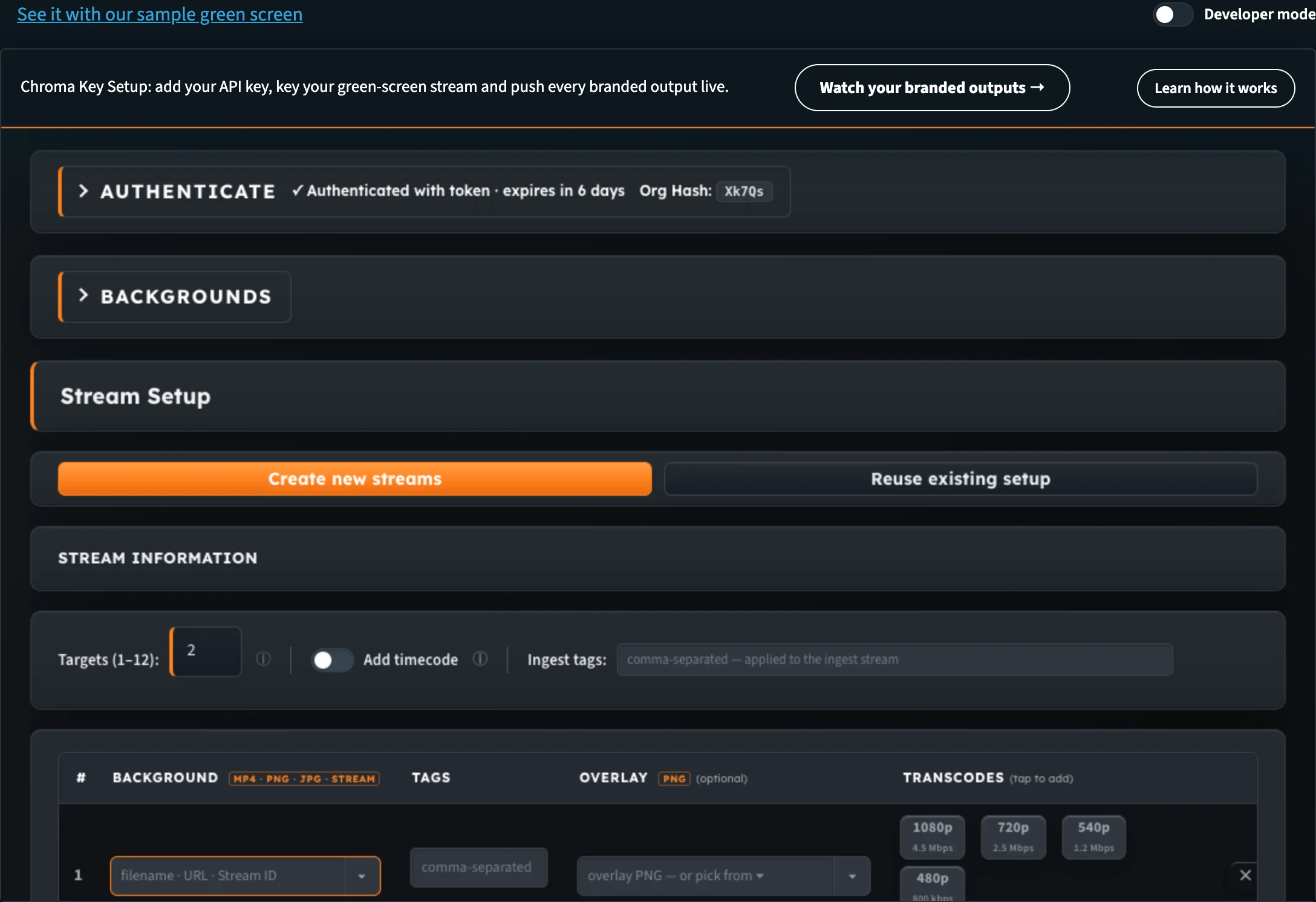
The Chroma Key Setup tool runs inside the hub. The toolbar above it links to your branded outputs.
The tool is the same Chroma Setup Tuner documented in the nanoStudio docs. For every step and control, see Chroma Key: Getting Started and Tuning the Key.
The toolbar above the tool has two buttons:
- Watch your branded outputs → opens the Branded outputs player with your setup.
- Learn how it works opens a short summary: On your own account, you can: connect with your API key and pick your green-screen stream, tune key colour, similarity, blend and despill against the live composite, and push the settings straight to every branded output with Apply to Stream.
At the top right of the page, See it with our sample green screen opens the same tool on our demo stream. Back to set up the key takes you back to your own setup.
The sample shows the workbench on our demo green-screen stream and its branded outputs. Apply to Stream there pushes the settings to our demo outputs, never to your account.
Watch branded outputs
The Branded outputs player plays one chroma key setup at a time: the green-screen input first, then one tile per branded output.
- In the menu, open Build › Multi-Brand › Watch branded outputs, or click Watch your branded outputs → in Chroma Key Setup.
- The player looks for your chroma key setups (Looking for your chroma key setups…) and opens the most recent one.
- To watch another setup, pick it in Setup. Setups that are live are marked · live.
- If a setup isn't in the list, paste its Ingest stream ID into the box next to it and click Load.
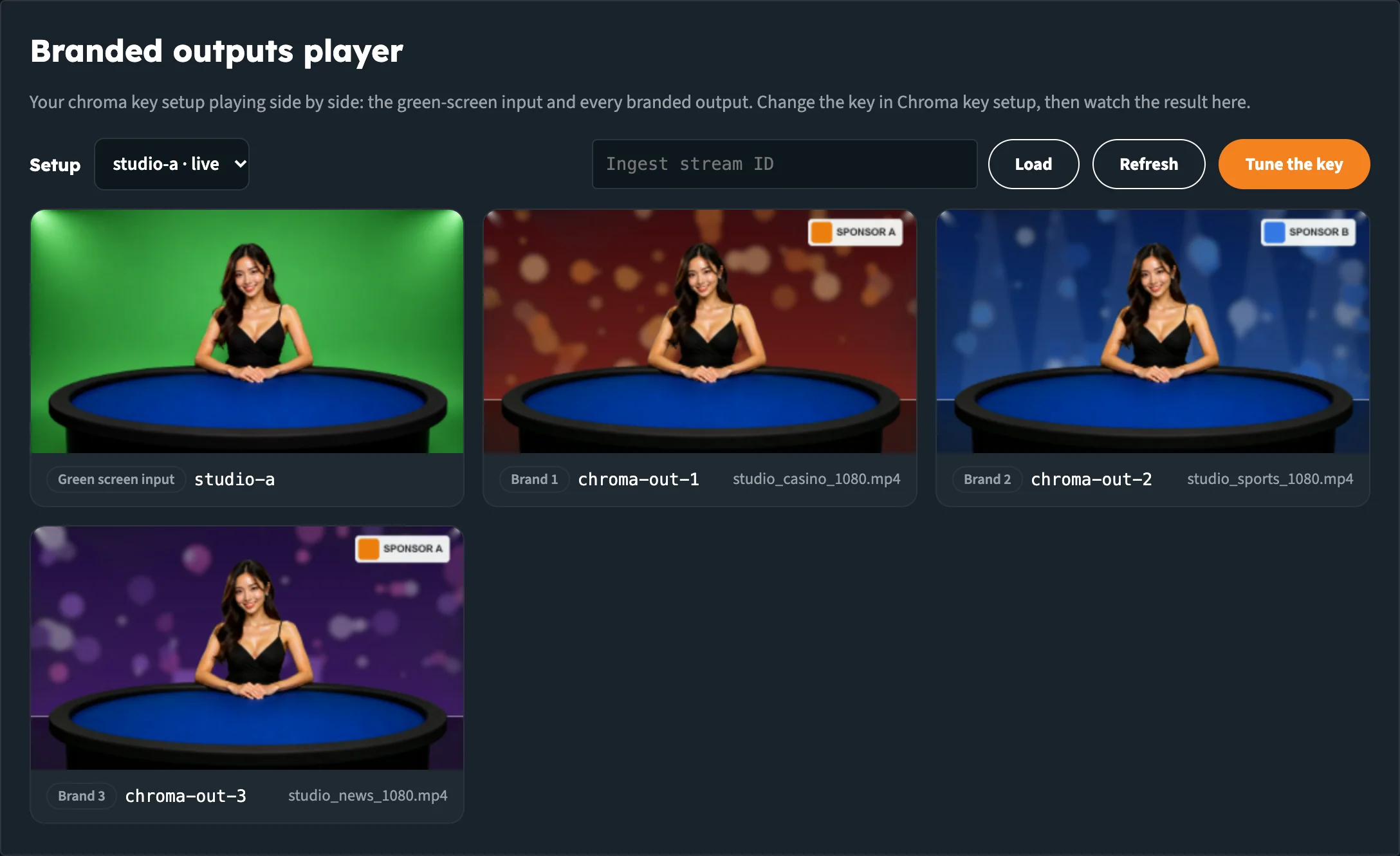
The green-screen input and every branded output play side by side. Each tile shows its stream name and background.
Each tile has a label and the stream name:
| Tile | What it shows |
|---|---|
| Green screen input | Your raw ingest stream, as your encoder sends it |
| Brand 1, Brand 2, … | Each keyed output, with the file name of its background |
The bar above the tiles has:
- Refresh to reload the setup, for example after you've added an output
- Tune the key to go back to Chroma Key Setup
Above the player, See it with a sample casino table opens Multi-Branding for Live Dealers. Back to your outputs brings you back.
When a tile says Not live
The outputs follow the input. Until your encoder publishes to the ingest, the tiles read:
| Tile | Message |
|---|---|
| Input | Not live. Go live on this stream and every brand follows. |
| Output | Not live. Starts once the input is live. |
Start your encoder, wait a few seconds, and click Refresh.
When no outputs show
A setup is the ingest stream that Chroma Key Setup creates, together with its outputs.
| Message | What to do |
|---|---|
| No chroma key setup on your account yet. | Create one with Set up chroma key. If you made one already, paste its ingest stream ID. |
| No branded outputs found for this stream. Is it the ingest of a chroma key setup? | The ID you loaded belongs to a stream without chroma key outputs. Paste the ID of the ingest stream instead. |
If your organisation has secure playback switched on, the player gets a playback token for every tile on its own. If it can't create one, the tile says so instead of staying black.
As a guest
Guests see both tools in the menu, marked Sign in. Clicking one opens the sign-in, with a link to create a free account.
A guest who opens one of these tools from a link sees our sample content instead:
| Tool | A guest sees |
|---|---|
| Set up chroma key | Chroma Key Setup with sample content: the workbench on our demo green-screen stream and its branded outputs |
| Watch branded outputs | Multi-Branding for Live Dealers: one live dealer table of ours, branded for four casinos |
At the top right, Try it with your own content opens the free sign-up. For both samples, see Demos.
When nanoStudio isn't on your account
On a production account without nanoStudio, the hub says so and offers to ask for it:
- In the account menu, nanoStudio reads Off, with an Upgrade button.
- In the menu, Set up chroma key and Watch branded outputs carry an off tag.
- On the Chroma Key pages and the Multi-Branding demos, the line at the top reads nanoStudio is not on your account yet., followed by Upgrade.

On a production account without nanoStudio, every chroma page offers Upgrade.
Upgrade opens an email to sales@nanocosmos.net that asks for an offer, with the feature and your organisation filled in. The Multi-Branding demos stay under Demos, so you can still see what nanoStudio does.
Next steps
- Chroma Key: Getting Started: every step in the Chroma Key Setup tool
- Outputs & Branding: backgrounds, overlays, tags and transcodes per output
- Tuning the Key: what every control does
- Troubleshooting & FAQ: fixes for common problems
- Demos: the Multi-Branding samples
- Developer mode: the API calls behind each page