Builder Hub: Getting Started
This page walks through a first visit to the Builder Hub: describing what you want to build, choosing how to come in, and finding your way around Home, your streams and the tools.
Before you start
| You need | Details |
|---|---|
| Browser | A current version of Chrome, Firefox, Edge or Safari |
| Account (optional) | Your nanoStream Dashboard email and password. Without one, create a free account or look around as a guest. |
| Camera (optional) | To go live from your browser. Or use OBS, vMix, ffmpeg or a hardware encoder that sends RTMP. |
Step 1: Describe what you want to build
The entry page asks What do you want to build with real-time video?
- Type your idea into the box in a sentence or two, for example a live casino with dealers branded for several operators.
- Click Continue. The button unlocks once you've typed a few characters. You can also press Ctrl+Enter (⌘+Enter on a Mac).
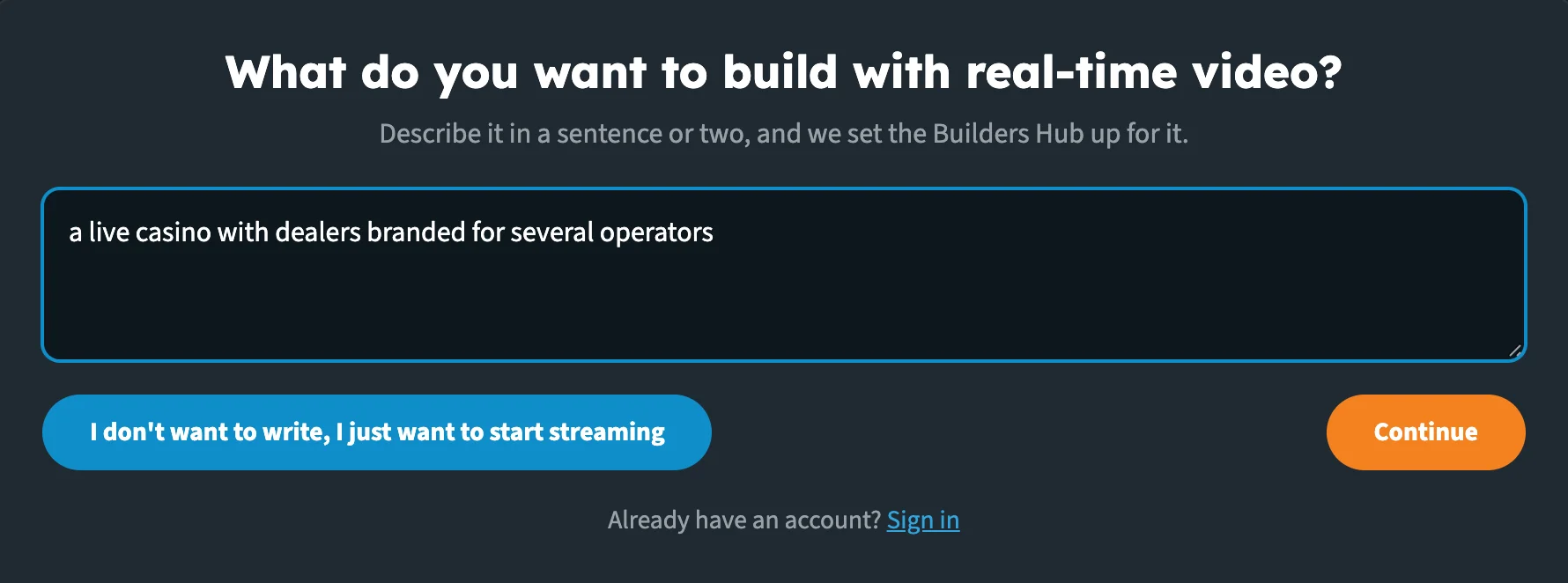
Describe your idea, or skip straight to streaming.
The hub picks the industry experience that fits your idea: iGaming & Live Casinos, Horse Racing, Live Auctions, Corporate Events, Public Safety or Educational Services & Training. If nothing fits, the hub opens with every tool.
Click I don't want to write, I just want to start streaming under the box. You go straight in as a guest, with every tool in the menu.
Already have an account? Click Sign in under the box to go straight to the sign-in form.
Step 2: Choose how to come in
The page now reads Let's build it, in real time. One line tells you which experience opens, for example This sounds like live casino, so your Builder Hub opens with what live casino operators use most. Click Show me every tool instead to skip the industry experience.
Then answer Do you have a nanocosmos account?
| Answer | What happens |
|---|---|
| Yes, sign me in | Opens the sign-in form. Existing customers sign in here too. |
| No, create a free account | Opens the free sign-up: every feature, 50 GB of traffic a month. |
| Just have a look | You go in as a guest, with sample content. |
Click ← Change what I wrote to go back and edit your idea.
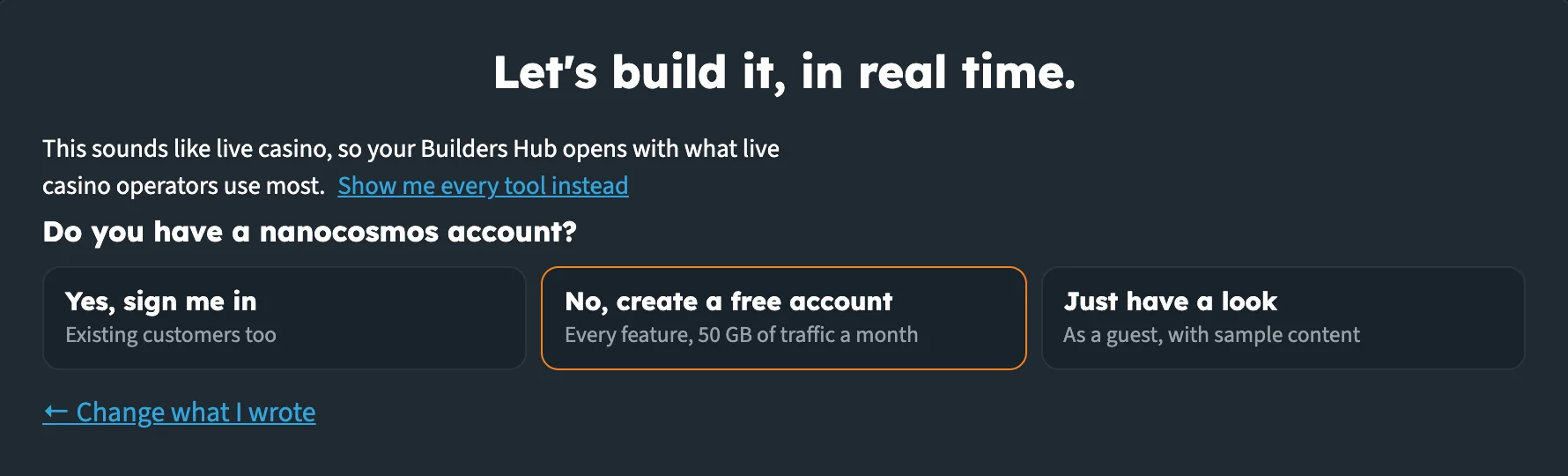
The hub tells you which experience opens, then asks how you want to come in.
Sign in
- Enter the Email and Password of your nanocosmos account (your nanoStream Dashboard login).
- Click Sign in.
Home opens with your organisation's name, for example Welcome, Acme Studios. If the details don't match, the form says That email and password don't match. Please try again. If a field is empty, it says Enter your email and password., and if the sign-in service can't be reached, Could not reach the sign-in service. Please try again.
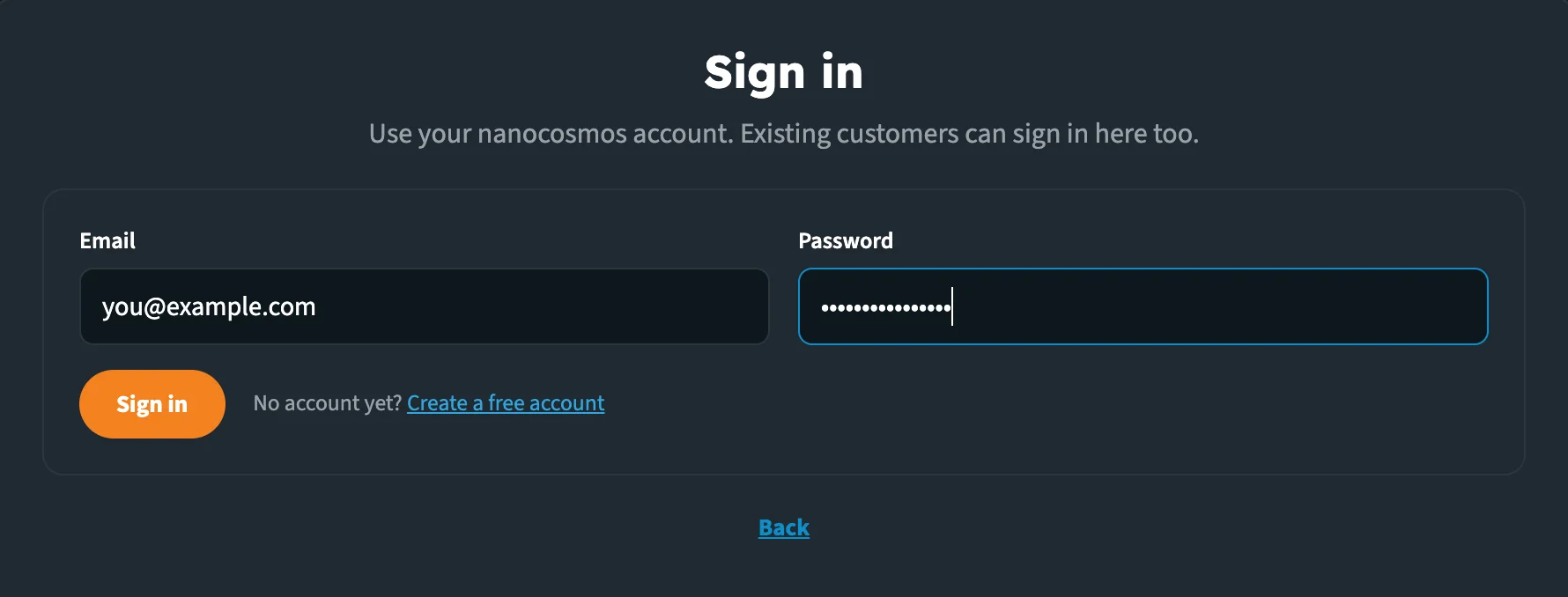
Use your nanocosmos account. Existing customers can sign in here too.
Create a free account
- Enter your Company name (at least 3 characters), Work email, Password and Confirm password.
- Answer What is your use case?: iGaming, Horse Race, Live Auction, Webcasts & Educational Training, Public Safety & Monitoring, Entertainment or Other. If you described your idea or picked an industry, the hub selects the matching answer for you; you can change it.
- Tick I agree to the Terms of Service and Privacy Policy.
- Click Start For Free.
The form shows Your account is ready. Check your inbox to confirm your email, then click Sign in and sign in with the email you used. Click Explore while you wait to look around as a guest in the meantime.
If the email already has an account, the form says so and offers Sign in instead.
If a field is missing or the passwords don't match, the form highlights it and says Please fix the highlighted fields. If the box isn't ticked, it says Please accept the Terms of Service to continue.
Click Back under either form to return to the previous step.
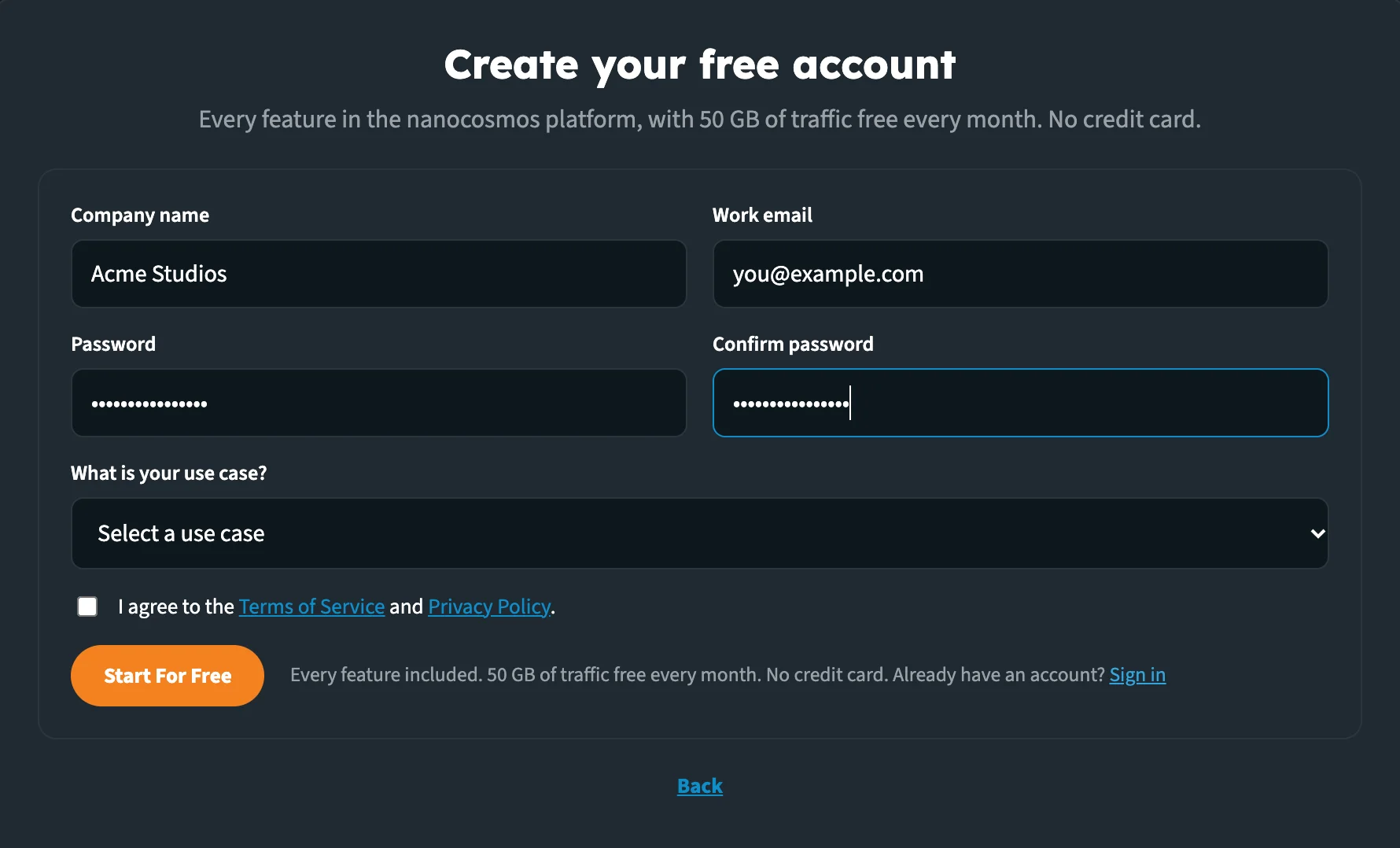
Every feature in the nanocosmos platform, with 50 GB of traffic free every month. No credit card.
Look around as a guest
As a guest you can create test streams and open every demo. Your test streams run on a shared demo account, so anyone with their name can watch. Tools that work on your own streams are marked Sign in in the menu. See Accounts & Access for the details.
Home
Home is the page you land on once you're in. It shows, from the top:
- The heading: Welcome, <your organisation> when signed in, or Your guest workspace. Beside it, a one-line plan summary: Guest · shared demo account with Start For Free, Free plan · … of 50 GB this month with See packages, or a Production badge.
- Your stream.
- What you can do for …, when you came in with an industry experience.
- Key numbers.
- Your streams.
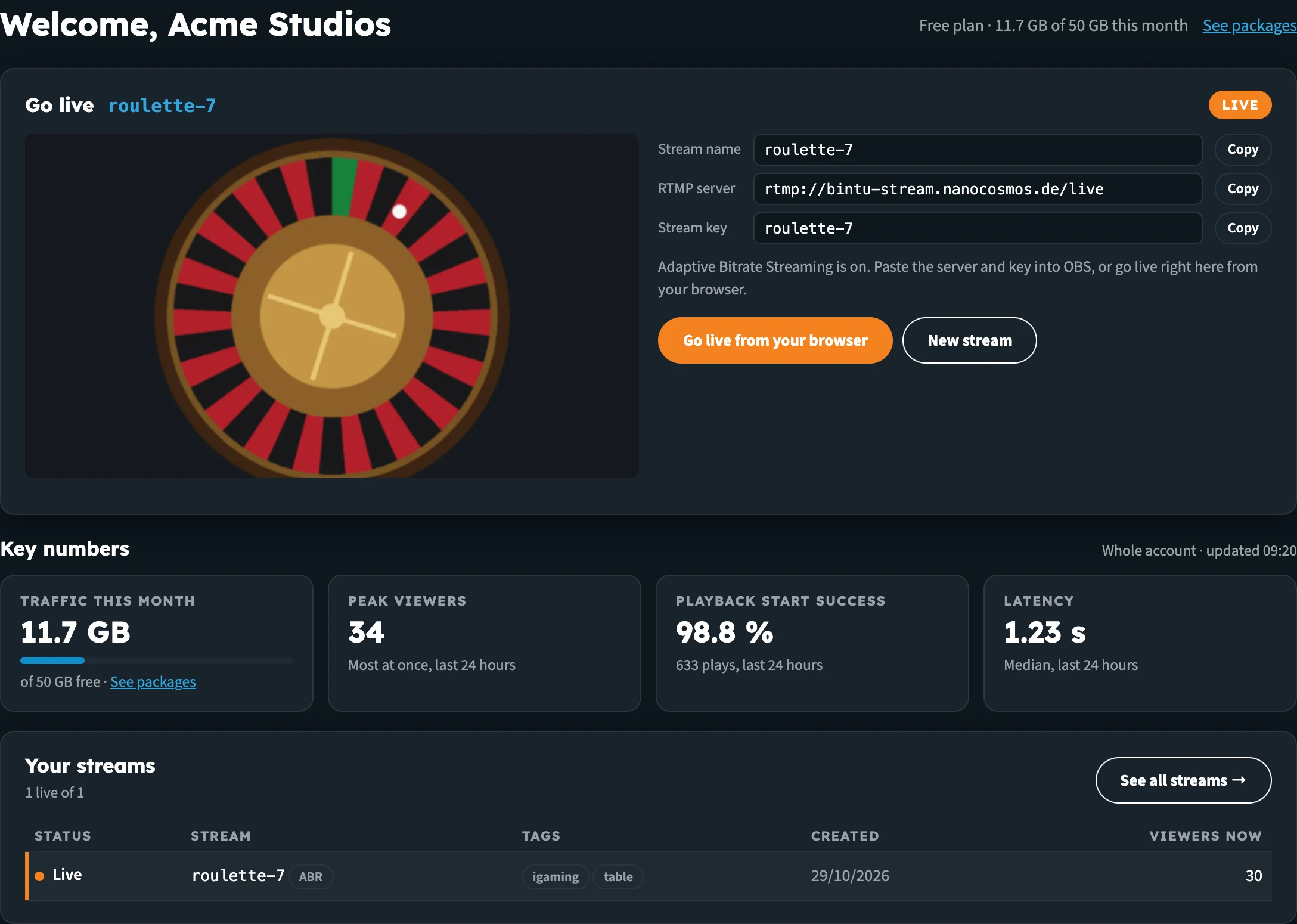
Home for a free account with one stream.
Your stream
The stream card grows with your account:
| When | The card shows |
|---|---|
| No stream yet | Create your first stream: Name it, go live from your browser or OBS, and watch it play. About two minutes. Click Create your stream to open Create a stream. |
| You have a stream | Go live (or Your test stream as a guest), with the stream name, a Live or Not live badge, a preview, and the ingest details. |
The ingest details are the Stream name, RTMP server and Stream key, each with a Copy button. Paste the server and key into OBS, or click Go live from your browser. When the stream has extra qualities, the card says Adaptive Bitrate Streaming is on. Click New stream (New test stream as a guest) to create another one.
The preview starts on its own as soon as the stream is live. Until then it reads Not live yet. Go live from your browser or OBS, and the preview starts here on its own.

A new account, or a guest, starts with this card.
Your account menu
Click your organisation's name (or Guest) in the header. The menu says which account you're on:
| Account | The menu says |
|---|---|
| Guest | You are exploring as a guest. Guest streams run on a shared demo account. |
| Free | Free account: every feature, with 50 GB of traffic free every month. Packages add more. |
| Production | Production account. Your contract applies here, with no Builder Hub limits., then your account's features, each On or Off, and Contact support |
See Accounts & Access for each account type in detail.
Key numbers
Four tiles from nanoStream Analytics:
| Tile | What it shows |
|---|---|
| Traffic this month | Data delivered and ingested since the first of the month. On a free account, a bar shows how much of the 50 GB you've used. |
| Peak viewers | The most viewers at once, last 24 hours |
| Playback start success | The share of plays that started, and how many plays, last 24 hours |
| Latency | The median latency, last 24 hours |
A guest sees the numbers for their own test streams; a signed-in account sees the whole account. The line above the tiles says which, and when the numbers were last updated. A tile shows Not on your plan if your account doesn't include Analytics.
Your streams
The five newest streams, live ones first, with Status, Stream, Tags, Created and Viewers now. Streams with Adaptive Bitrate Streaming carry an ABR tag. Click a row to make it the stream on your stream card. Click See all streams → for the full list.
Home refreshes on its own: stream states every few seconds, the numbers every minute.
Industry experiences
When your idea matched an industry, or you picked one, the hub speaks your industry's language. A stream is called by its own word everywhere, from the menu to the buttons:
| Industry | A stream is a |
|---|---|
| iGaming & Live Casinos | table |
| Horse Racing | race |
| Live Auctions | sale |
| Corporate Events | event |
| Public Safety | feed |
| Educational Services & Training | session |
Home also shows What you can do for <industry>: five outcomes, each with why it matters. Click one to open the tool that does it. An outcome gets a tick once you've tried it, and the next one to try is highlighted with Try it →. A note beside an outcome tells you where it leads when the tool isn't open to you yet:
| Note | Meaning |
|---|---|
| With sample content | You're a guest, so it opens the demo on our sample content. |
| Needs a free account | You're a guest and there's no demo, so it opens the free sign-up. |
| Not on your account yet | Your production account doesn't include this feature, so it opens the demo. |
Everything else is under Build in the menu.
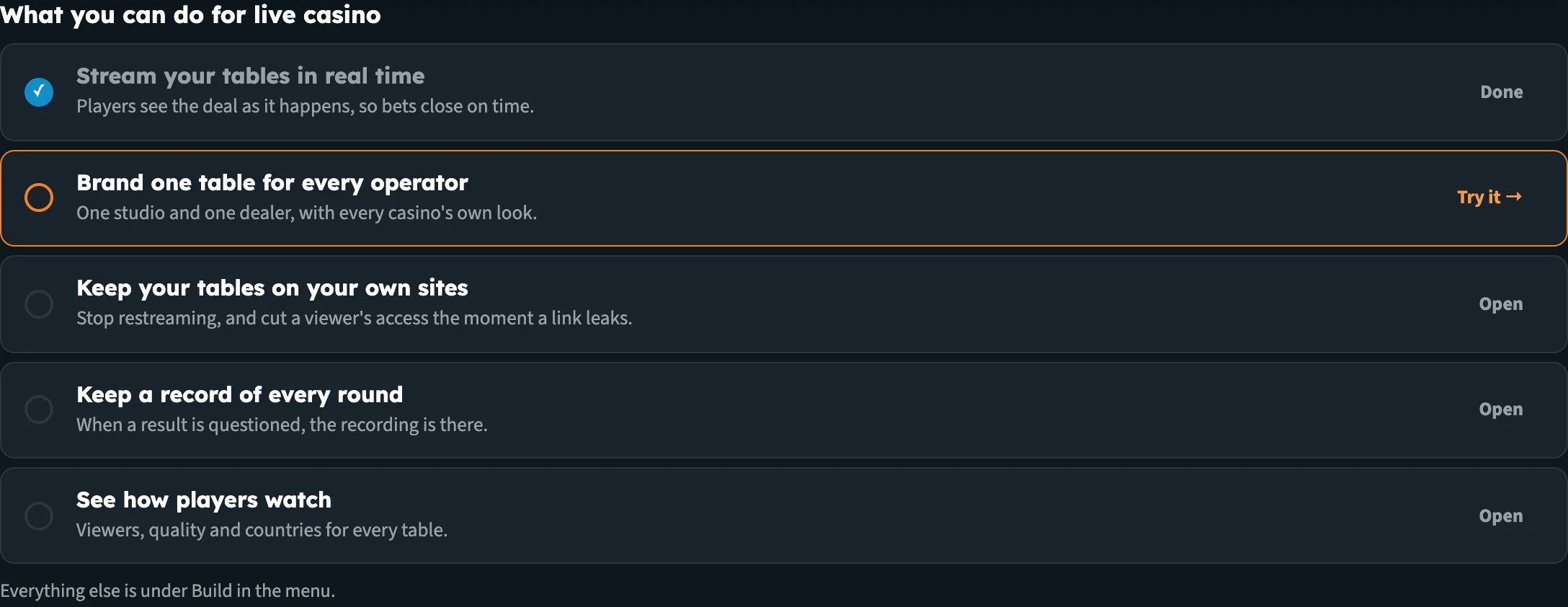
The live casino experience. Each outcome opens the tool, or its sample, that does it.
Change industry
- Open the account menu (your organisation's name, or Guest, in the header).
- Click Change industry (Pick your industry if you haven't chosen one).
- Choose from the Industry list at the top of Home, or choose Everyone to go back to every tool with no industry wording.

The industry is optional. Change it at any time.
Streams and Live wall
Click Streams in the menu (or the industry's word, for example Tables) to see every stream on your account, newest first.
- Filter with All, Live or Not live.
- Page through with Previous and Next.
- Click a row to open its stream card above the list, with the preview and ingest details.
- Click New stream to create one.
As a guest, the list shows the test streams you made in this session.
Switch to the Live wall tab to see every stream that is live right now, muted, side by side. The wall updates on its own: new live streams are added and finished ones removed, without restarting the players that are still playing. Click Refresh to check straight away. When nothing is live, click Go live to start.
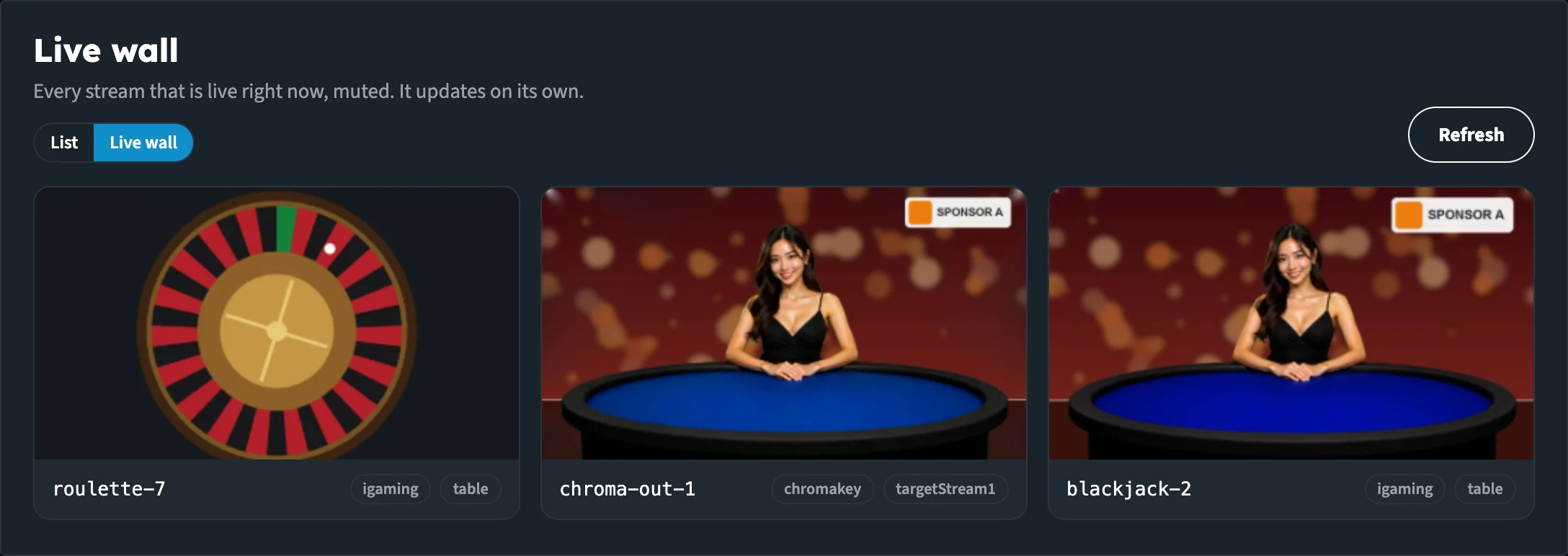
The Live wall: everything live right now, muted.
On every tool page
Each tool and demo page opens with a one-line description and a Learn how it works button. It opens a short card that sums up what the page does, and what to do next: Start For Free → for a guest, or a link to the tool that does the same on your own streams.
Above the page, a bar tells you what you're looking at and links to the other side:
| You're on | The bar shows |
|---|---|
| A tool with a sample | A link to the sample, named for what it is, for example See it with sample cameras or See it with our sample green screen |
| A sample | What the sample is, for example Sample content: four camera angles we stream for this demo. Nothing here touches your account., and a link back to the tool |
| A demo, as a guest | You are watching sample content we stream for this demo. and Try it with your own content, which opens the free sign-up. View analytics and Manage tokens show the same line to a guest. |
| A feature your account doesn't have | On Manage tokens (Secure playback) and the Live Captions and nanoStudio pages: <Feature> is not on your account yet. with an Upgrade button |
The Developer mode switch sits at the right of the same bar. See Developer Mode.
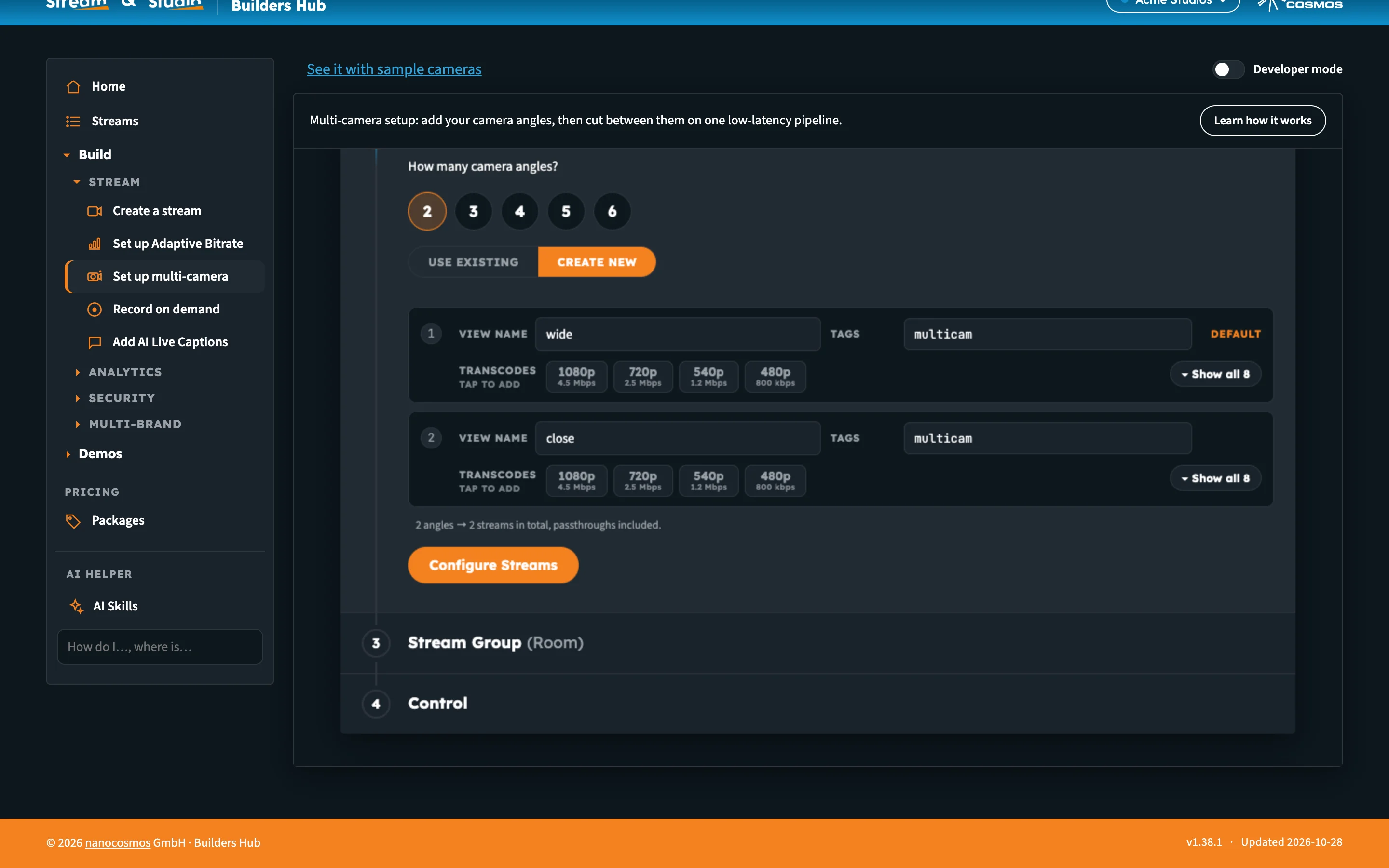
The bar above every tool page links the tool and its sample.
Sign out
Open the account menu and click Sign out, or Leave guest mode as a guest. You're back at the entry page.
Next steps
- Create a stream: go live from your browser or your own encoder
- Accounts & Access: what each account type sees
- Demos: every feature on sample content