Guardian
This section describes the Guardian features which can be accessed within the Analytics Dashboard.
Further details and general information about the nanoStream Guardian features can be found here.
The Guardian in the Analytics dashboard is a tool used to monitor stream access and quickly block suspicious clients. It allows operators to analyze viewer activity (such as IP addresses or referrers) and block specific IPs or referrers that attempt to access a stream in an unauthorized or suspicious way. In addition, Guardian enables token revocation, allowing operators to invalidate compromised or misused playback tokens to immediately stop unauthorized access. This helps protect live streams from misuse and ensures controlled and secure distribution of streaming content.
Guardian Table
To begin, please sign in to the Analytics Dashboard using your nanoStream Cloud/Bintu account credentials.
If you have not created an account yet, you can sign up or reach out to our dedicated sales team via the contact form or by sending an email to sales(at)nanocosmos.de.
Once you logged in, click on the Guardian tab to open the Guardian menu.
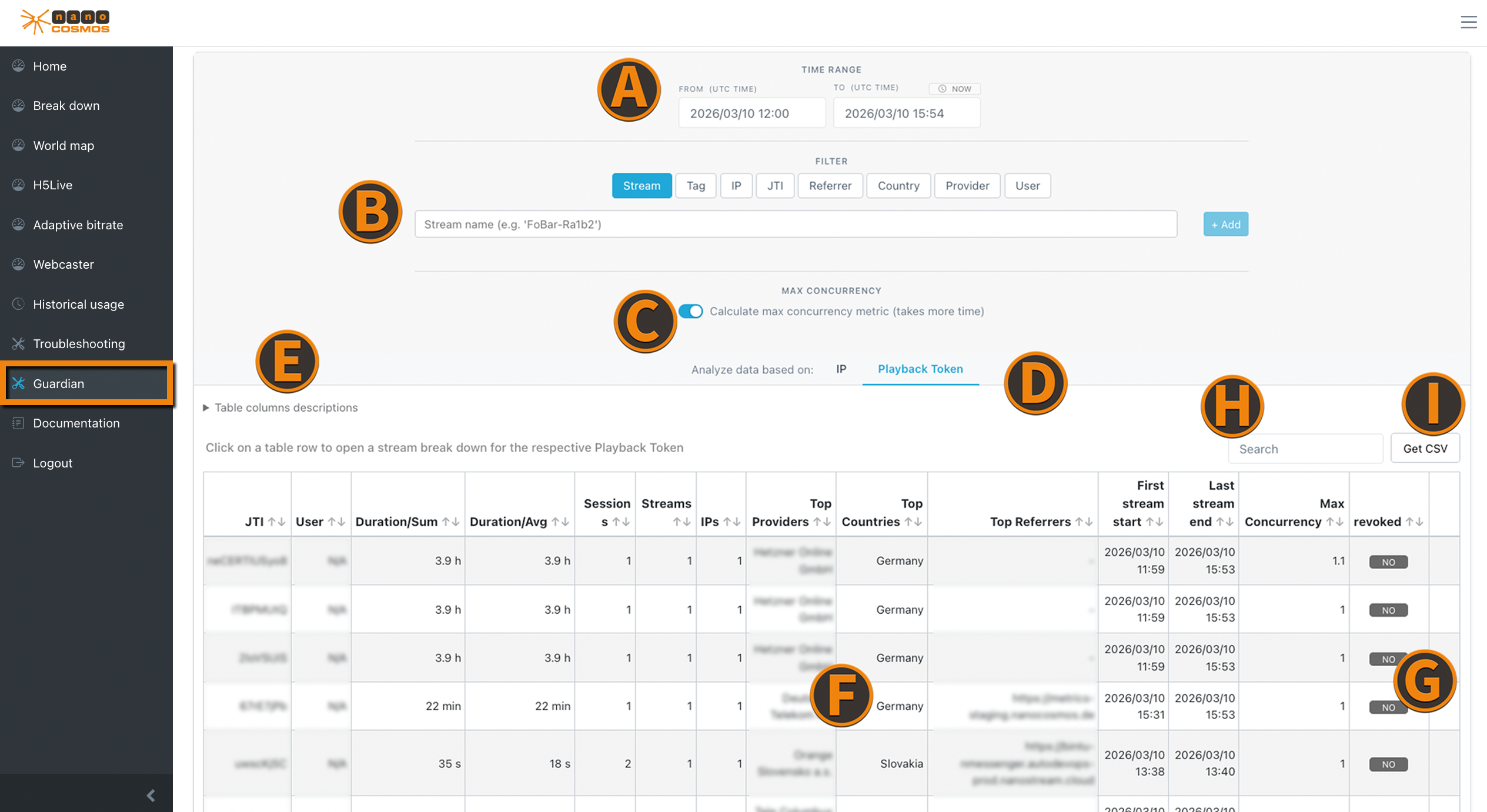 Screenshot: Analytics Guardian
(A) Time Range Filter (UTC Time) the start (From) and end (To) of the time range to search in
(B) Filter Section:
Filters that are pasted from clipboard get automatically applied after short delay to enhance usability.
- Stream: Stream name (eg.: 'Abcde-Fghij')
- Tag: The customizable stream tag
- IP: Playback client IP
- JTI: Token inditifier of a playback token
- Referrer: Playback client referrer
- Country: Playback client location
- Provider: Playback client provider (ISP)
- User: If (optional) user IDs are shared with us, you can filter by these IDs
(C) Calculation Switch that decides whether to add max concurrency metric to the analysis (Calculation can lead to extended response times)
(D) IP & Playback Token Switch to choose what the analysis should be based on
(E) Table columns descriptions overview can be used to get additional information about what is shown in each column
(F) Data Table containing the results of the analysis based on the set filters
Insights of each entry can be viewed by left-clicking the row. This will open the breakdown view of the selected entry.
(G) State of IP / Token showing whether this entry's IP/Token is blocked/revoked or not
(H) Search Input to search for specific entries in the table
(I) CSV data export button by clicking you can automatically download a .csv file, containing the currently displayed data
Guardian - IP Breakdown
When choosing to search based on IPs, a breakdown of this can be opened by selecting a row in the guardian table.
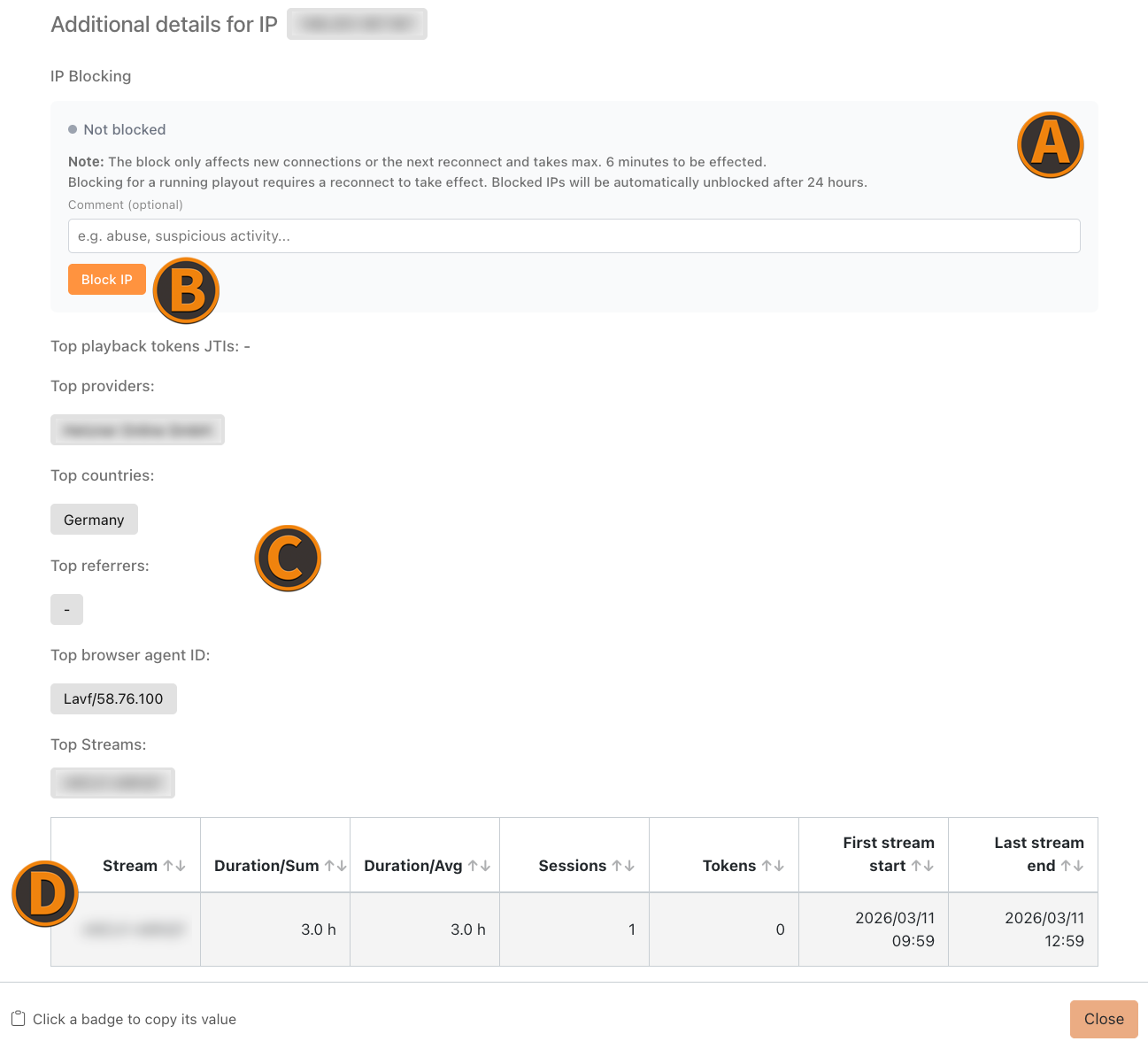 Screenshot: Guardian - IP Details
(A) IP Blocking Status offering the status of the IP block and the blocking capability with a customizable comment
(B) IP Block Button that blocks the corresponding IP from stream access
(C) Most Popular Metrics section displays the most important metrics ranked by appearences
- Top Providers
- Top Countries
- Top Referrers
- Top Browser Agent IDs
(D) Most Popular Streams that were accesed, by the selected IP and their activity metrics
Guardian - Playback Token Breakdown
When choosing to search based on Playback Tokens, a breakdown of this can be opened by selecting a row in the guardian table.
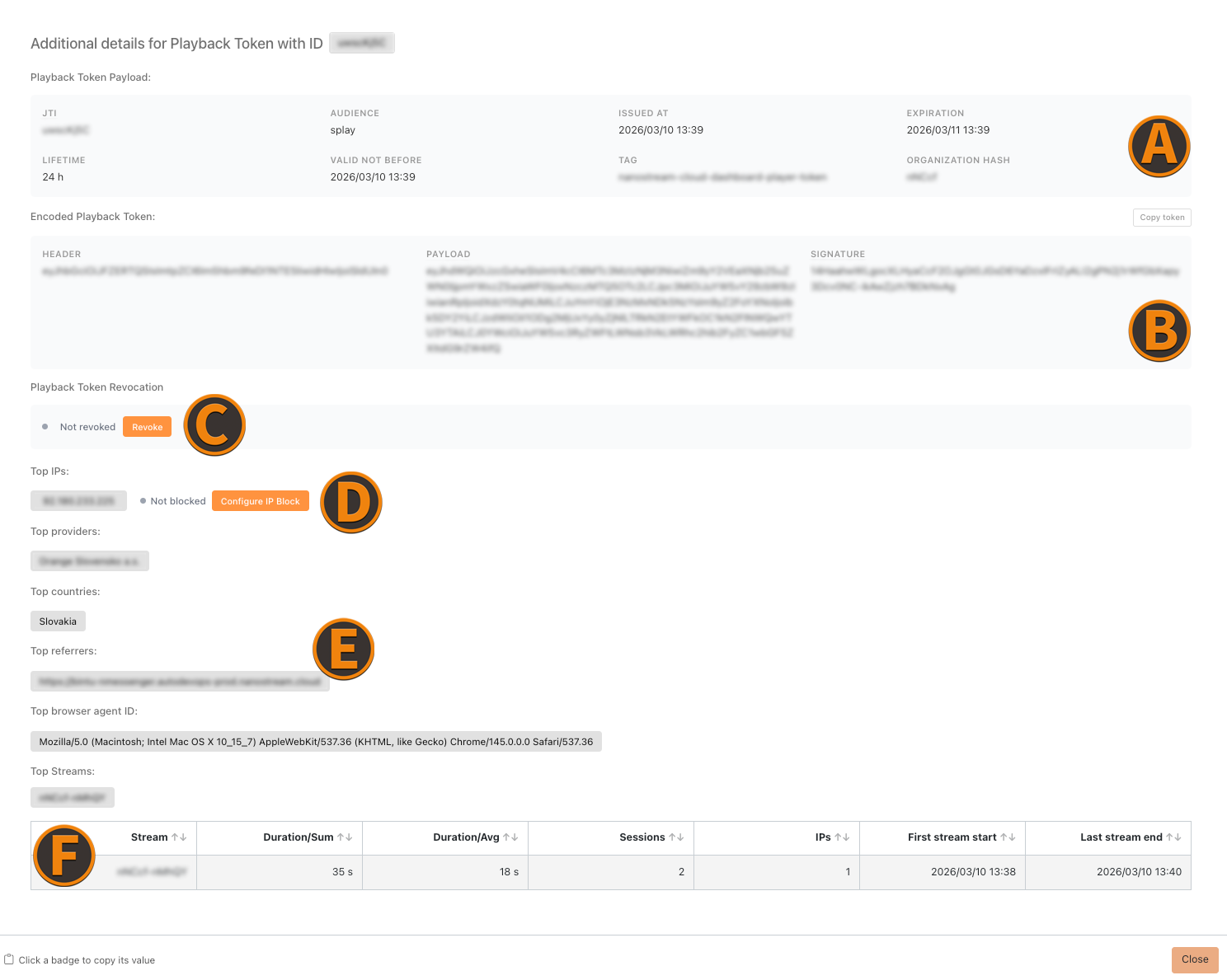 Screenshot: Guardian - Playback Token Details
(A) Playback Token Payload this section shows information of the selected playback token
(B) Encoded Playback Token a section of the actual token with its structure
(C) Revocation Status shows whether the playback token is blocked or not
An expired playback token can still be revoked for a 24-hour grace period after its expiration, so operators can terminate ongoing playback sessions running on a technically-expired token. The Expired label appears as soon as the token's exp is in the past, but the Revoke action stays available throughout the grace period.
(D) IP Block Button that blocks the corresponding IP that used the selected token
(E) Most Popular Metrics section displays the most important metrics ranked by appearences
- Top Providers
- Top Countries
- Top Referrers
- Top Browser Agent IDs
(F) Most Popular Streams that were accesed, using the selected playback token and their activity metrics
IP & Referrer Blocking in Breakdown View
Accessing IP and Referrer Blocking based on playout traffic analysis, can be done easily by taking a look inside the Breakdown View.
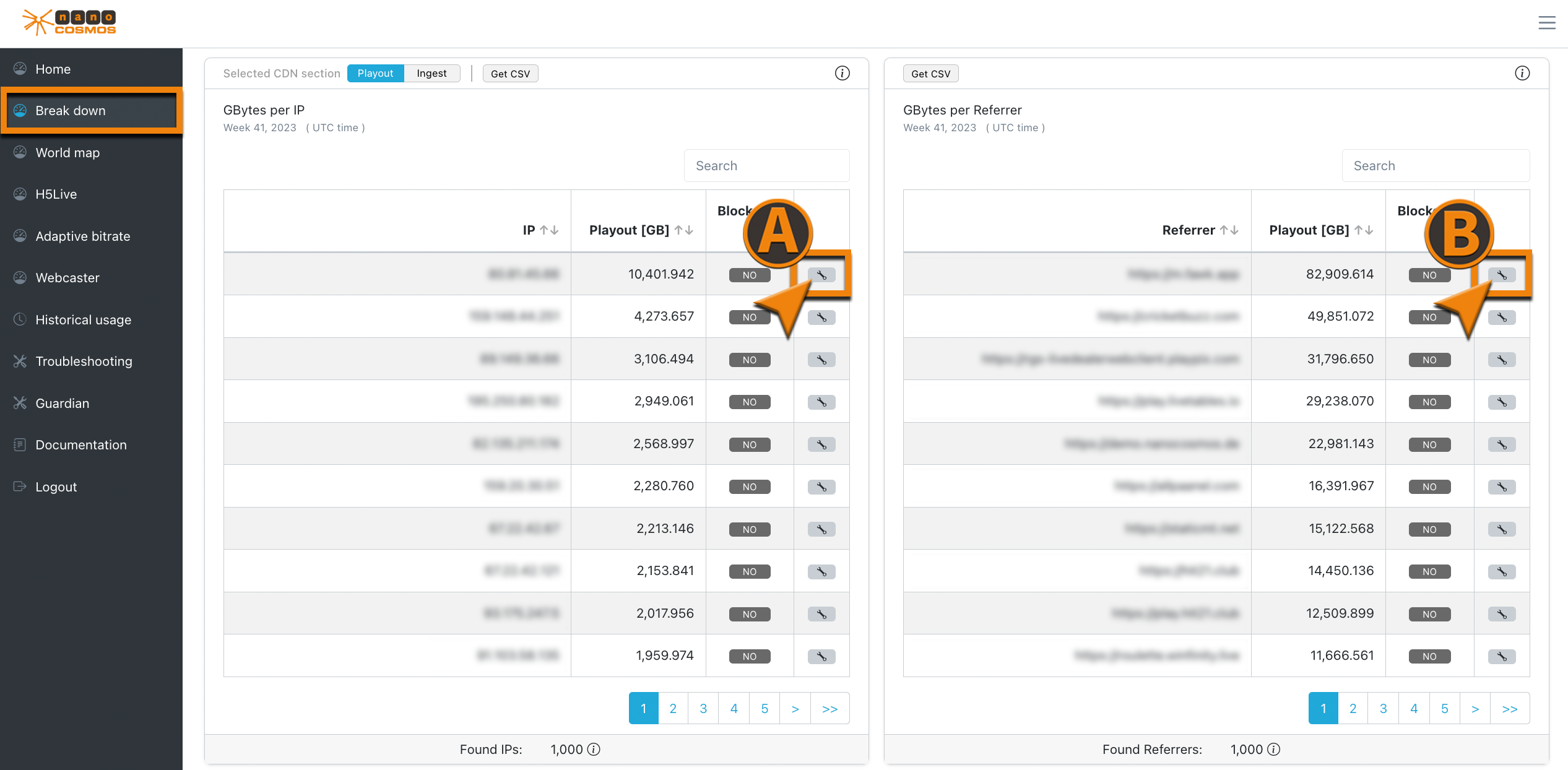 Screenshot: IP/Referrer Blocking Breakdown View
(A) IP Block Button that blocks the corresponding IP from stream access
(B) Referrer Block Button that blocks requests from a specific referrer